
Metal housing. Quiet operation.
The CNC-machined 6063 aluminum alloy housing uses fanless passive cooling. The honeycomb pattern is printed on the surface; it is not a set of openings or a cooling structure.

MASTER SERIES
Master Edition capture card · Silver aluminum alloy housing
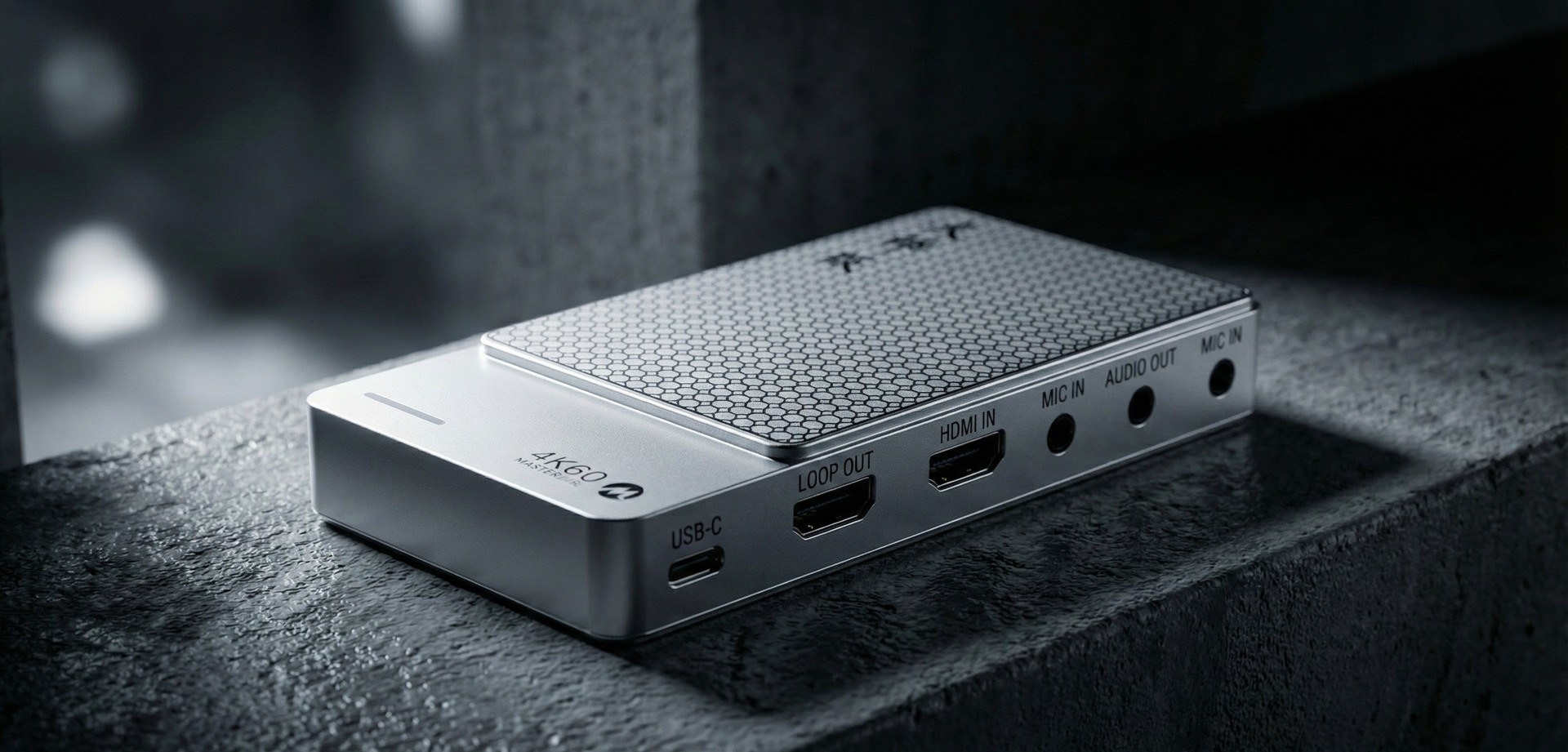
The CNC-machined 6063 aluminum alloy housing uses fanless passive cooling. The honeycomb pattern is printed on the surface; it is not a set of openings or a cooling structure.
According to brand materials, the device passed a 72-hour streaming stability test at a laboratory ambient temperature of 26°C. Actual performance varies with environment and configuration.
IT9339 / VIDEO CAPTURE
USB video capture Computer · Recording and streaming
2K 144fps / 1080P 240fps · MJPEG
HDMI pass-through Display · Local monitoring
2K 144Hz / 1080P 240Hz
HDMI 2.0 inputUp to 3840 × 2160 / 60Hz HDR
Resolution, frame rate and video format: matched precisely.
3840 × 2160
| Frame rate | Video format |
|---|---|
| 60fps | MJPEG |
| 30fps | NV12、MJPEG |
2560 × 1440
| Frame rate | Video format |
|---|---|
| 144fps | MJPEG |
| 60fps | YUY2、NV12、MJPEG |
| 30fps | YUY2、NV12、MJPEG |
1920 × 1080
| Frame rate | Video format |
|---|---|
| 240fps | MJPEG |
| 120fps | NV12 |
| 60fps | RGB24、YUY2、NV12、MJPEG |
| Resolution | Refresh rate | Notes |
|---|---|---|
| 3840 × 2160 | 60Hz | HDR |
| 2560 × 1440 | 144Hz | — |
| 1920 × 1080 | 240Hz | — |
HDR refers only to input and pass-through, not HDR capture support. Actual performance depends on the source, computer, ports, cables and software settings.
03 / Connections and specifications
Connect the source first, then the computer. Know what each connection is for.
Connect the camera or gaming device's HDMI OUT to the capture card's HDMI IN.
Connect USB-C to the computer, then select the device and video mode in your capture software.
For a separate display, connect LOOP OUT to a monitor or TV.
Connect the source's HDMI OUT
Connect to a computer USB data port
Connect to a monitor or TV's HDMI IN
Connect a compatible microphone
Connect a compatible line-level source
Connect compatible audio equipment
| Connection / Function | Rated support | Notes |
|---|---|---|
| HDMI IN input | HDMI 2.0 / Up to 3840 × 2160 / 60Hz HDR | Input specifications are not USB capture formats. |
| LOOP OUT pass-through | 4K60 HDR / 2K144Hz / 1080P240Hz | The source, cables and display must be compatible. |
| USB-C capture | 4K60 / 2K144 / 1080P240 · MJPEG | See the capture mode tables above for other frame rate and format combinations. |
| Uncompressed capture formats | NV12 / YUY2 / RGB24 | RGB24: 1080P60. See the capture mode tables above for specific combinations. |
| Connection | No driver installation / USB 3.2 Gen 2 | As stated in the support materials. After system detection, select the device in your capture software. |
| Housing / Packaging | 6063 aluminum alloy / Box with foam tray | Package contents are as listed on the purchased product's page. |
Capture performance depends on the computer, ports, cables and software settings. HDR input and pass-through do not imply HDR capture. You may be unable to capture HDCP-protected content.